

The fastest safe way to wipe an iPad is Settings → General → Transfer or Reset iPad → Erase All Content and Settings, using your device passcode and Apple ID password. If the iPad is locked, disabled, or won’t let you sign in, connect it to a Mac or PC and use recovery mode to restore it instead. Either way, back up first and turn off Find My before you start, or the next owner could get stuck at Activation Lock.
TL;DR:
- Erasing an iPad requires turning off Find My and signing out of the Apple ID beforehand to deactivate Activation Lock; failure to do so leaves the device locked to the previous account.
- If the on-device erase option is unavailable or the iPad is disabled, using recovery mode with a computer will reinstall iPadOS but can take up to 60 minutes, depending on connection speed and downloads.
- Leftover configuration profiles or management restrictions from work or school can prevent erasing, and forgotten Apple ID or Screen Time passcodes may block account removal.
- Confirm the erase succeeded by checking for the Hello screen, ensuring Find My is off, and verifying the device is no longer listed in iCloud’s Find My service.
- Common erase issues often stem from timing errors in recovery mode, outdated software, or faulty cables, which can usually be resolved by retries, updates, or hardware troubleshooting.
Table of Contents
- How Do You Wipe an iPad the Right Way?
- Before You Wipe: Backup, Apple ID, and eSIM Decisions
- How to Erase All Content and Settings From the iPad Itself
- How to Restore a Locked iPad Using Recovery Mode
- Why Won’t My iPad Let Me Erase It?
- How to Verify Your iPad Is Actually Wiped
- Fixing Common Restore and Erase Errors
- Sell Your Wiped iPad for Cash Today
- Sources
- FAQ
How Do You Wipe an iPad the Right Way?
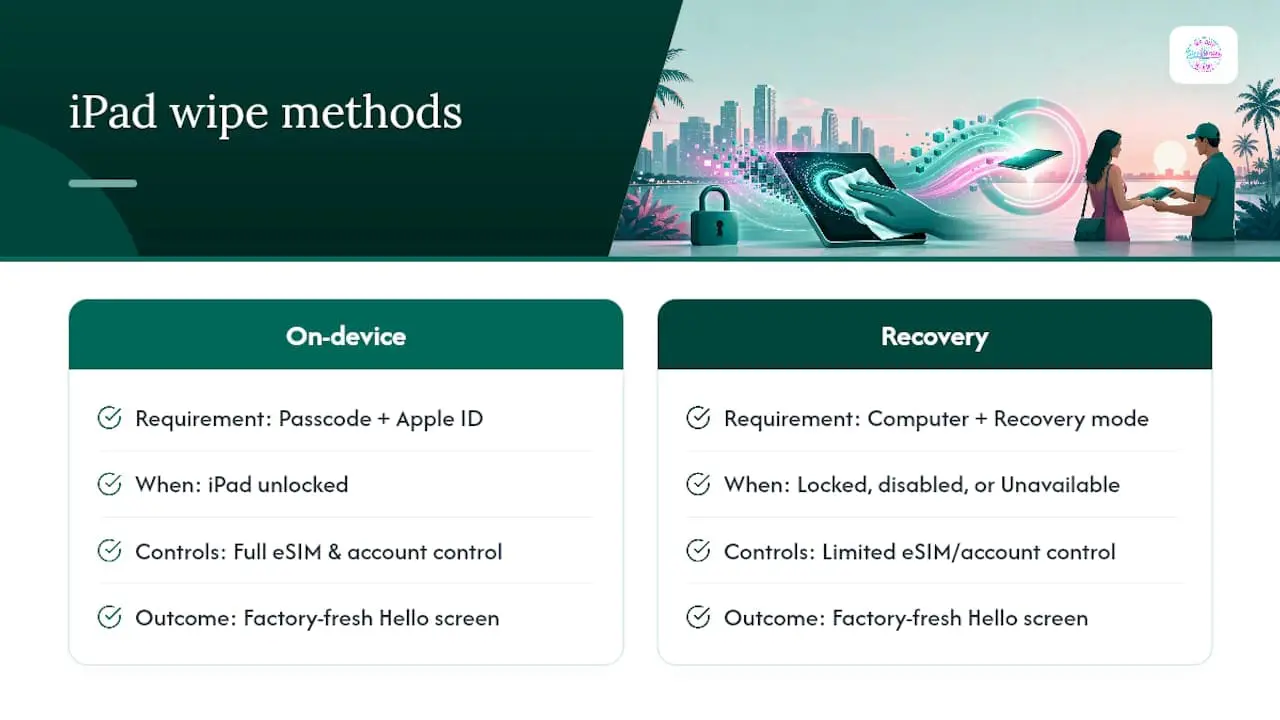
There are really only two paths, and which one you take depends on whether you can unlock the iPad right now.
If you have the passcode and Apple ID password, the on-device method is quicker and gives you full control over eSIM and account settings. If the iPad is locked out, disabled after too many failed attempts, or stuck on “Device Unavailable,” you’ll need a computer and recovery mode. Both methods end in the same place: a factory-fresh iPad showing the Hello screen, ready for a new Apple ID or a new owner. We’ll walk through both, plus what to do when neither one seems to work, which happens more often than you’d think with managed devices and leftover configuration profiles.
Before You Wipe: Backup, Apple ID, and eSIM Decisions
Skipping this step is how people lose photos, contacts, and purchased apps permanently. Erasing an iPad is not reversible once it starts, so get these five things sorted first.
- Back up everything. Use iCloud (Settings → your name → iCloud Backup → Back Up Now) or a computer backup through Finder or the Apple Devices app, then confirm the backup actually finished before moving on.
- Sign out of Apple ID and turn off Find My. This deactivates Activation Lock so the next owner isn’t locked out of a device they legitimately own.
- Decide what happens to the eSIM. If you erase it along with everything else, you’ll need to contact your carrier to reactivate cellular service on a new device.
- Charge the iPad or keep it plugged in. A dead battery mid-erase is an easy problem to avoid.
- Check for configuration profiles. Go to Settings → General → VPN & Device Management. A leftover school or work profile can block the erase option entirely.
Pro Tip: If you’re not sure your iCloud backup is current, check the timestamp under Settings → your name → iCloud → Manage Account Storage → Backups before you erase anything. A backup from three months ago won’t save last week’s photos.
How to Erase All Content and Settings From the iPad Itself
This is the standard route, and it takes most people under ten minutes of active steps, plus a short wait while the device wipes itself.
- Open Settings → General → Transfer or Reset iPad.
- Tap Erase All Content and Settings.
- Enter your device passcode when prompted.
- Enter your Apple ID password to turn off Find My and Activation Lock.
- If you have an eSIM, choose whether to keep it or erase it.
- Confirm the final warning. The iPad will restart and begin erasing.
Apple’s own erase instructions confirm this sequence removes personal information, network settings, and all content, but it only fully disables Find My once you’ve entered the correct Apple ID password. Skip that step or enter the wrong password, and the iPad may still show up as locked to a previous account.
While the erase runs, you’ll see an Apple logo with a progress bar. Do not disconnect power or force a restart during this window. Once it finishes, the iPad reboots into the Hello screen, exactly like it looked the day it came out of the box.
One number worth remembering: if you end up needing the computer method instead because the device is locked, Apple states the full restore process can take up to 60 minutes, factoring in the iPadOS download and installation. The on-device erase is almost always faster when it’s available to you.
How to Restore a Locked iPad Using Recovery Mode
When an iPad is disabled, showing “Device Unavailable,” or you’ve simply forgotten the passcode, you can’t get into Settings at all. That’s what recovery mode is for. It reinstalls iPadOS from scratch and erases everything in the process, which is exactly what you want when preparing a device for resale but can’t unlock it first.
- Turn off the iPad completely.
- Connect it to a Mac or Windows PC with a compatible USB or USB-C cable.
- Open Finder on a Mac (macOS Catalina or later) or the Apple Devices app or iTunes on Windows or older macOS.
- Force the iPad into recovery mode using the correct button sequence for your model (details below).
- When your computer detects an iPad in recovery mode, choose Restore (not Update).
- Let the software download and install. Keep the cable connected the entire time.
- Once restore finishes, the iPad reboots to the Hello screen.
The button sequence depends on whether your iPad has a Home button, and Apple’s guide is specific about timing: release too early or too late, and the device just reboots instead of entering recovery mode.
- No Home button: Press and quickly release Volume Up, then press and quickly release Volume Down, then press and hold the Top button until the recovery mode screen appears.
- With Home button: Press and hold both the Home button and the Top (or Side) button together, and keep holding until the recovery screen shows up.
Pro Tip: If the recovery screen doesn’t appear on the first try, disconnect, wait ten seconds, and repeat the button sequence rather than assuming your iPad is broken. Most failed attempts come down to timing, not hardware.
If the download exceeds 15 minutes and the iPad exits recovery mode on its own, that’s expected behavior, not a failure. Let the download finish in the background, then put the device back into recovery mode and restore again.
Why Won’t My iPad Let Me Erase It?
If Erase All Content and Settings is grayed out, or the iPad refuses to erase for reasons that seem to have nothing to do with a passcode, one of a few specific problems is usually to blame.
Activation Lock from a previous Apple ID. If someone else’s Apple ID is still tied to the device through Find My, the erase option may work but the iPad will remain locked to their account afterward. The original owner needs to remove the device from their account at iCloud.com or sign out on the device directly, since Apple’s Find My instructions confirm this is a required step before anyone else can activate it.
A configuration profile you forgot about. Check Settings → General → VPN & Device Management for school, work, or parental control profiles. Apple support documentation notes that these restrictions, along with an active Find My session, are the most common reasons the erase option won’t work.
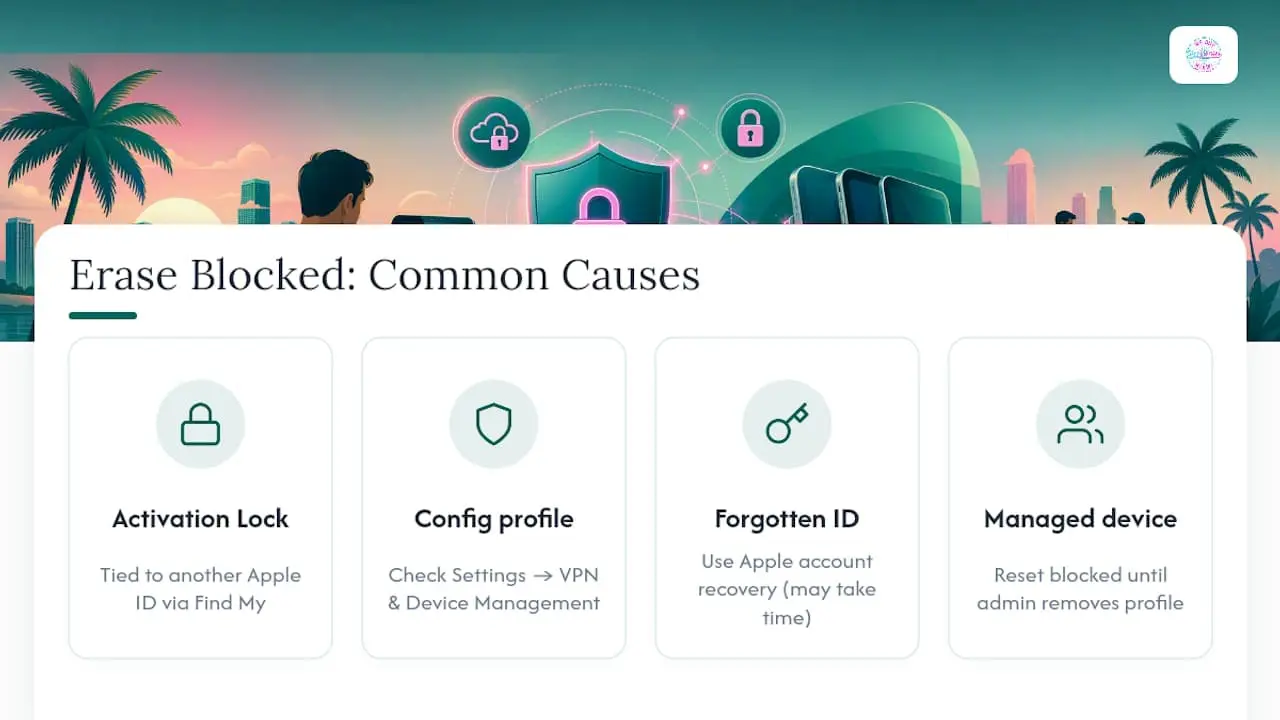
A forgotten Apple ID or Screen Time passcode. Apple’s account recovery process can restore access to your Apple ID, though it may take time depending on your account’s recovery options.
A managed device from work or school. If IT installed a management profile, factory reset may be blocked entirely until an administrator removes it on their end. Contact them directly rather than trying to force your way around it.
Community reports back this up consistently: people trying to erase an iPad are often blocked not by a technical glitch but by a forgotten sign-out or a leftover management profile they didn’t realize was still active.
How to Verify Your iPad Is Actually Wiped
Don’t hand over an iPad or drop it off for trade-in without confirming the wipe actually worked. It takes less than a minute to check.
- Look for the Hello screen. If the iPad boots to a setup screen asking for language and region instead of a lock screen or your old wallpaper, the erase succeeded.
- Confirm Find My shows no device. Log into iCloud.com under Find My and make sure the iPad isn’t still listed under your Apple ID.
- Check eSIM status. If you erased the eSIM, remember the new owner or you will need to contact the carrier to activate service.
- Note accessories and cosmetic condition. Keep the original charger, cable, and any case, since complete kits generally get better offers at resale.
- Keep proof of purchase if you have it. Some buyers ask for it to confirm the device isn’t reported lost or stolen.
Fixing Common Restore and Erase Errors
Most erase problems are temporary hiccups, not signs of a broken iPad. Here’s how to handle the ones that come up most.
- Download stuck past 15 minutes: Let it finish rather than canceling. Once it completes, put the iPad back into recovery mode and restore again.
- Device keeps exiting recovery mode: Close Finder or iTunes, restart your computer, make sure macOS or iTunes is updated, then retry the full button sequence.
- Restore fails repeatedly with no clear cause: Try a different cable or USB port before assuming the worst.
- Buttons are physically broken or unresponsive: Software fixes can’t help here. Apple recommends visiting an Apple Store or Authorized Service Provider when hardware damage is preventing recovery mode from working at all.
Pro Tip: Before assuming your iPad is defective, try a different computer if one is available. A flaky USB port or an outdated version of Finder causes more failed restores than people realize.
Sell Your Wiped iPad for Cash Today
A wiped iPad sitting in a drawer isn’t doing you any good, and shipping it off to an online buyback site means waiting days for a check that may come in lower than the original quote. Bring your iPad in for an on-the-spot inspection and receive cash the same visit, avoiding waiting on mailed buyback checks.

Bring the iPad powered on to the Hello screen so we can confirm the wipe went through, along with the original charger and cable if you still have them. Proof of ownership helps but isn’t always required. Once you check in, inspection typically takes just a few minutes, and there’s no waiting on a mailed device or a pending online offer, since our tablet buying process is built around getting you paid before you leave. Whether it’s an older iPad you’re clearing out or a full trade-up, you can see what we’re currently buying or head to Webuyelectronicsmiami to check hours and get your offer started.
FAQ
How Do I Reset an iPad for a New Owner?
Turn off Find My, sign out of your Apple ID, then go to Settings → General → Transfer or Reset iPad → Erase All Content and Settings so the device boots to the Hello screen for the next user.
Does a Factory Reset Really Delete Everything on an iPad?
Yes. Erase All Content and Settings removes personal data, apps, network settings, and account information, and the process cannot be undone once it starts, so back up first.
How Do I Factory Reset My iPad Without a Passcode?
You can’t erase through Settings without the passcode, so connect the iPad to a Mac or PC, force it into recovery mode using the correct button sequence for your model, and choose Restore.
Why Won’t My iPad Let Me Erase All Content and Settings?
The erase option often grays out because of an active Find My session, a leftover configuration profile under Settings → General → VPN & Device Management, or a management restriction from a work or school account.
Ready to Turn a Wiped iPad Into Cash?
Once the Hello screen confirms the wipe worked, you can bring the device to We Buy Electronics Miami for an on-the-spot cash offer instead of waiting on a mailed buyback check.
