

The fastest way to factory reset an iPhone is Settings > General > Transfer or Reset iPhone > Erase All Content and Settings, but only after you back up your data and turn off Find My. Skip that safety check and you risk locking the next owner out with Activation Lock. If the phone won’t cooperate through Settings, a computer restore through Finder or the Apple Devices app gets you to the same clean, factory-default result.
TL;DR:
- Back up your iPhone using iCloud or your computer to prevent data loss before performing a factory reset.
- Turn off Find My before erasing, as it is necessary to disable Activation Lock and transfer ownership freely.
- Use a computer restore if the device is unresponsive, frozen, or inaccessible through Settings, ensuring a complete reset.
- Unpair your Apple Watch and remove the eSIM before erasing the iPhone to avoid setup issues for the next owner.
- Setting up a device as new is safer than restoring from a potentially compromised backup, especially if malware or stalkerware is suspected.
Table of Contents
- How Do You Back Up an iPhone Before Erasing It?
- How Do You Factory Reset an iPhone Using Settings?
- How Do You Restore an iPhone to Factory Settings Using a Computer?
- What Should You Check Before Handing Off an iPhone?
- What If You Forgot Your Passcode or Can’t Erase the iPhone?
- Erase All Content vs. Reset All Settings: What’s the Difference?
- What Happens After the Reset?
- Sell Your Wiped iPhone for Cash Today
- Where These Steps Come From
- Sources
How Do You Back Up an iPhone Before Erasing It?
You can’t undo a factory reset. Once you tap “Erase All Content and Settings,” every photo, message, and app disappears for good, so backing up first isn’t optional if you want your data back.
You have two reliable paths:
- iCloud backup: Go to Settings > [Your Name] > iCloud > iCloud Backup, tap “Back Up Now,” and wait for the confirmation with a timestamp before you erase anything.
- Computer backup: Connect your iPhone to a Mac and open Finder, or to a Windows PC with the Apple Devices app installed, select your device, and choose “Back Up Now.”
There’s one exception worth knowing. If you suspect your iPhone has been compromised by malware or stalkerware, don’t restore from that backup later. According to Apple’s guidance on restoring devices, a compromised backup can quietly reintroduce the same problem, so setting the phone up as new is the safer move.
How Do You Factory Reset an iPhone Using Settings?
This is the standard route for wiping an iPhone you still have full access to, whether you’re troubleshooting a glitchy device or getting it ready to sell.
- Open Settings > General > Transfer or Reset iPhone.
- Tap Erase All Content and Settings.
- Enter your device passcode when prompted.
- Enter your Apple Account password to confirm and disable Activation Lock.
- Choose whether to keep or erase your eSIM.
- Confirm the erase and let the iPhone restart.
Apple’s own instructions confirm this process permanently deletes all personal data and restores factory-default settings, removing the device from your iCloud account as long as Find My has already been switched off.
Plug the phone into power before you start. A full erase and reset can take several minutes, and a mid-process shutdown from a dead battery is the last thing you want.
Pro Tip: Once the Apple logo disappears and the “Hello” screen with the slide-to-set-up prompt appears, the erase finished correctly. If you see anything else, like a spinning wheel that won’t stop, give it more time before assuming something went wrong.
How Do You Restore an iPhone to Factory Settings Using a Computer?
A computer restore is your backup plan for a frozen, disabled, or unresponsive iPhone, and it’s also just a faster option if you’d rather not tap through menus on a small screen.
- Update your computer’s operating system and back up the iPhone first if it still responds.
- Connect the iPhone with a cable and open Finder on a Mac, or the Apple Devices app on Windows.
- Select your iPhone from the sidebar or device list.
- Click Restore iPhone and confirm.
- Approve any “Trust This Computer” or passcode prompts that appear on the phone’s screen.
The computer erases the device and installs the latest version of iOS during the restore, so you end up with a genuinely clean slate, not just an emptied one. If the iPhone won’t even show up in Finder or the Apple Devices app, put it into recovery mode first. That’s the fallback Apple recommends when a device is too locked up for a standard restore.
What Should You Check Before Handing Off an iPhone?
Erasing the phone is only half the job if you’re selling it or handing it to someone else. Skip these steps and the new owner could end up staring at a locked screen that only you can unlock.
- Turn off Find My at Settings > [Your Name] > Find My > Find My iPhone before you erase. This is what actually releases Activation Lock, and it needs to happen before, not after, the reset.
- Unpair your Apple Watch through the Watch app instead of resetting it directly on the watch. Unpairing this way automatically creates a watch backup and removes Activation Lock; resetting the watch alone can leave that lock active and cause setup headaches for the next owner.
- Double-check iCloud.com/find to confirm the device is no longer listed under your account, especially if you’ve already handed the phone over.
Pro Tip: If you’re selling both an iPhone and an Apple Watch together, unpair the watch through the phone’s Watch app before you erase the phone. Do it in the wrong order and you’ll lose the ability to unpair it properly. Sellers offloading a watch alongside the phone can find current buyback details on We Buy Electronics Miami’s Apple Watch page.
What If You Forgot Your Passcode or Can’t Erase the iPhone?
A locked-out iPhone isn’t a dead end, but it does mean skipping the Settings method entirely.
- Forgot your passcode? Put the iPhone into recovery mode and restore it using a computer. You’ll lose data that isn’t backed up, but the device itself becomes usable again.
- Activation Lock won’t clear? You’ll need the original Apple ID and password used to set up the device. If you don’t remember them, Apple’s account recovery process is the only legitimate path forward.
- Getting a “can’t erase” error or a disabled screen? A computer restore through Finder or the Apple Devices app usually pushes past errors that block an on-device reset, per Apple’s troubleshooting guidance.
- Reactivating an eSIM after erasing it? That’s a carrier conversation, not an Apple one. Contact your carrier directly to move the plan to a new device.
Erase All Content vs. Reset All Settings: What’s the Difference?
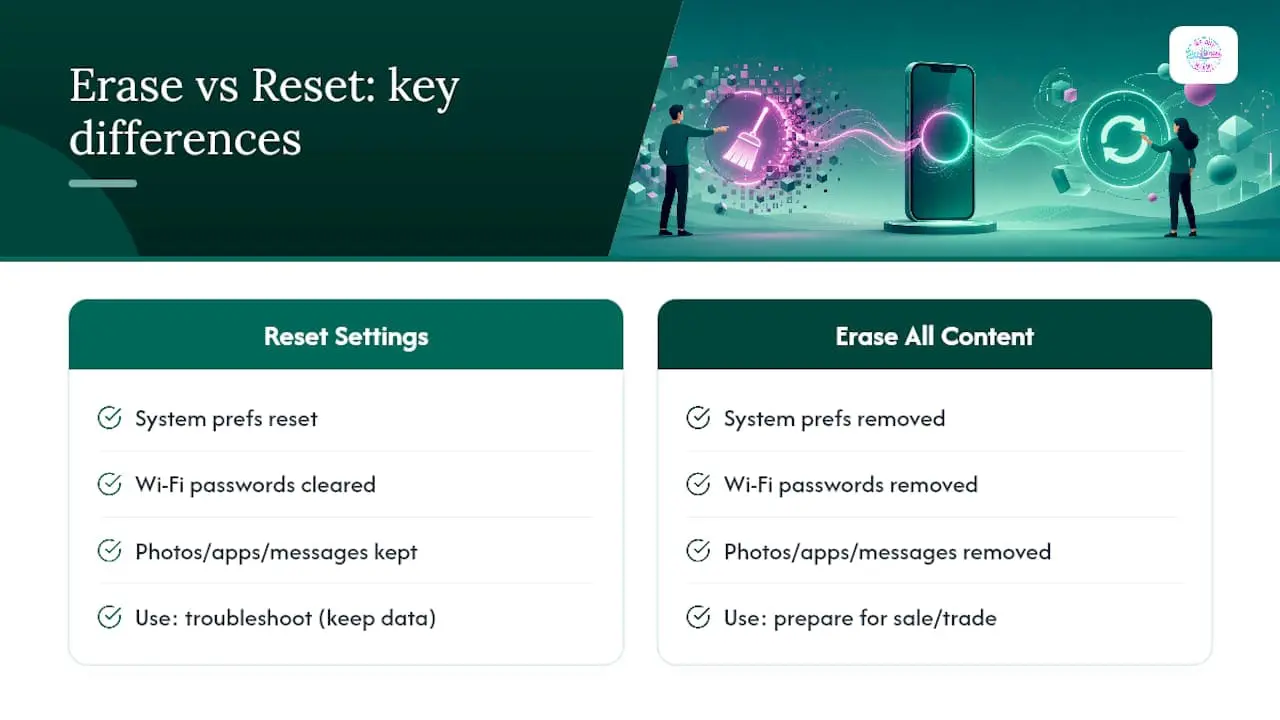
These two options sound similar and do very different things. Reset All Settings puts your system preferences, like Wi-Fi passwords and display settings, back to default, but it leaves your photos, apps, and messages untouched. It’s the right pick when you’re troubleshooting a software glitch and want a clean slate without losing anything.
Erase All Content and Settings is the one that matters for selling or trading in a phone. Apple’s documentation confirms it removes all user data and media entirely, returning the device to the state it shipped in.
What Happens After the Reset?
Once your iPhone reboots to the “Hello” screen, what you do next depends on your goal. Keeping the phone? Follow the setup prompts and choose to restore from your iCloud backup or your computer backup, and everything comes back the way you left it.
Selling the phone? Stop right there. Hand it over at the “Hello” screen without signing in or completing setup, letting the buyer create their own Apple ID from scratch. And if the original reset was triggered by suspected malware, resist the urge to restore from backup at all. Setting the device up fresh is the only way to be sure nothing unwanted comes back with it.
Before you box it up, it helps to confirm exactly which iPhone you’re holding. A tool like this phone model identification guide can settle any doubt about the exact model and storage size, details that affect what a buyer will offer you.
Sell Your Wiped iPhone for Cash Today
A freshly erased iPhone sitting in a drawer isn’t doing you any good. Once you’ve backed up your data, turned off Find My, and confirmed the “Hello” screen, We Buy Electronics Miami can turn that device into cash the same day, no shipping labels, no waiting on a mystery buyer online, and no risk of a payment dispute after the fact.

We buy iPhones in person after a quick inspection, and we’re used to seeing devices at every stage of the reset checklist. If you followed the steps above, you’re already ahead of the process. Just bring a photo ID, the charger if you still have it, and the phone itself. We’ll confirm the erase, check the condition, and make a cash offer on the spot. If you’re also clearing out other Apple gear, our what we buy page covers iPads, MacBooks, and Apple Watches too. Start with our sell your iPhone page to see what your model is worth before you come in.
Where These Steps Come From
This guide draws directly from Apple’s own documentation to keep every step accurate. For the full on-device walkthrough, see Apple’s factory reset instructions. For computer-based restores, reference Apple’s guide to restoring via Finder or the Apple Devices app. For eSIM-specific handling, see Airalo’s guide to resetting an iPhone without losing your eSIM.
